Black Friday Deal: 20% off with voucher code: PIXELGUARD20  |  Ends in:

Finally, Comparison That Gets It

Other tools scream ‘CHANGE DETECTED!’ every time a pixel shifts. We built an engine that understands the difference between ‘the layout moved’ and ‘the layout broke.’ Your sanity will thank us.

The False Positive Epidemic

You’ve tried visual regression tools before. Install tool, feel productive. First alert: “87% change detected!” Panic. Check site. Everything looks fine. Repeat 47 times. Start ignoring alerts. Miss actual bug. The problem isn’t visual comparison. It’s dumb visual comparison.

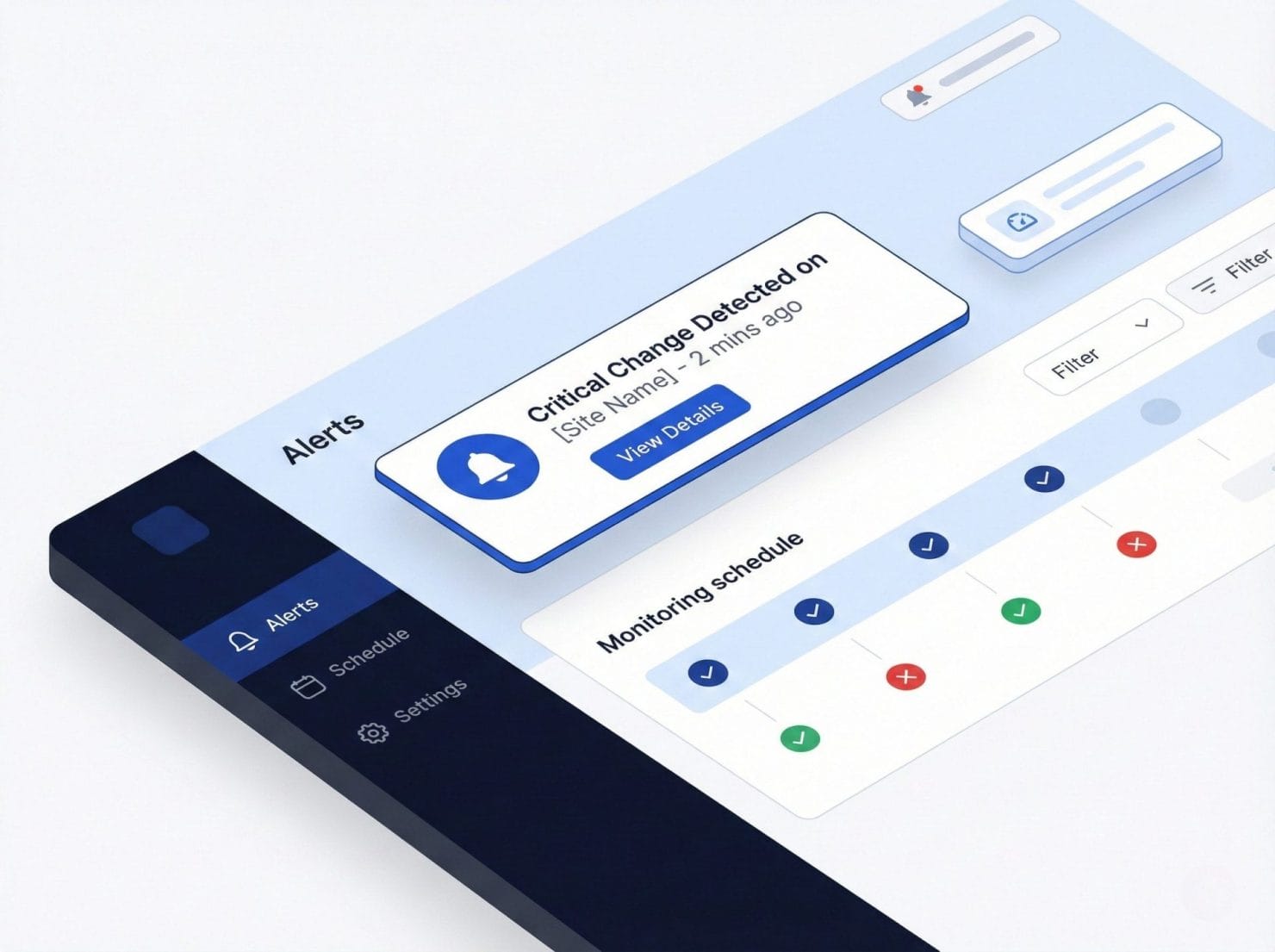
Alert fatigue: Constant false positives train you to ignore real issues

Wasted time: Hours spent investigating changes that don’t matter

Missed bugs: When everything is urgent, nothing is
Isometric illustration showing overwhelmed figures surrounded by excessive warning notifications and alert badges on floating UI cards

Intelligent Change Detection

We don’t just count different pixels. We analyze the page structure, detect layout shifts, and use actual computer vision to understand what changed and whether it matters. You get alerted when things break. Not when things move.

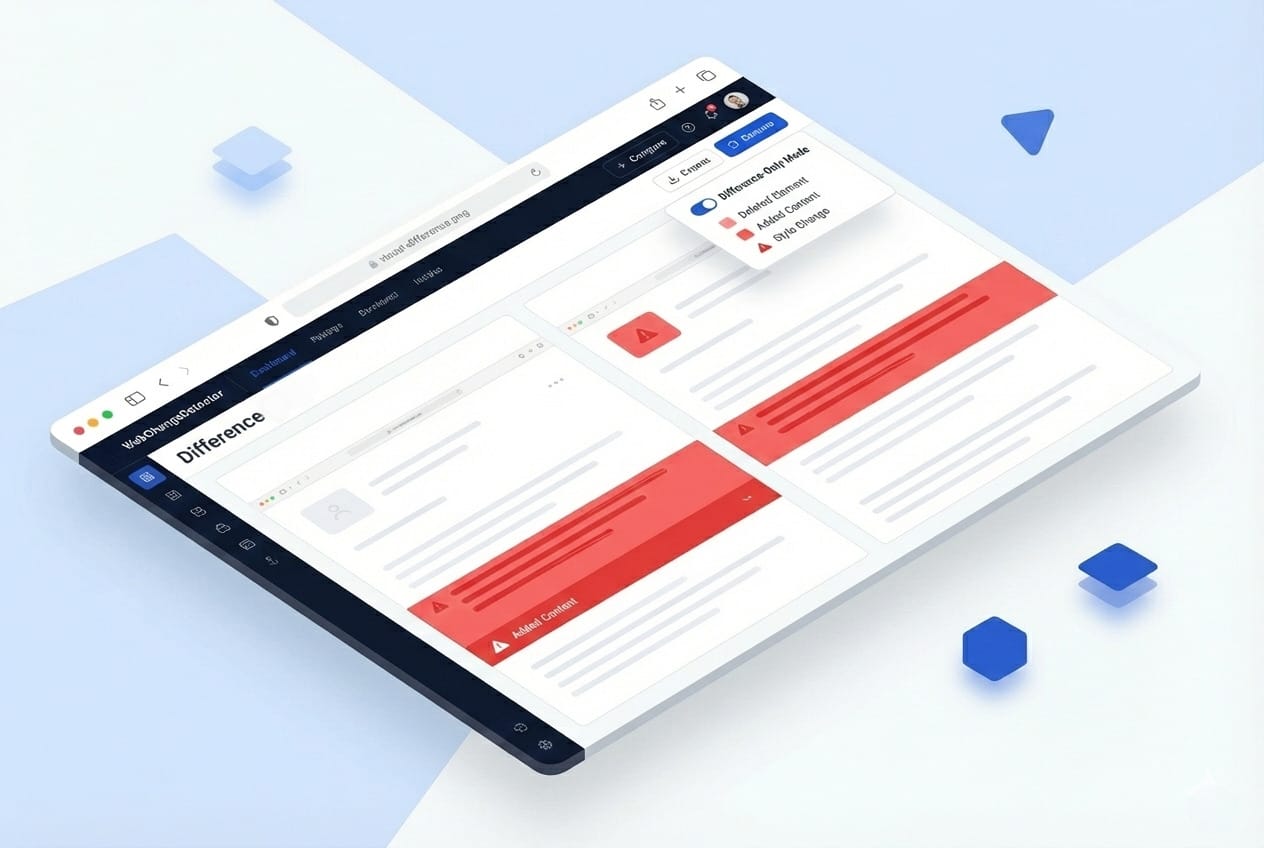
Structure aware: Understands DOM elements, not just pixels

Shift detection: Knows when content moved vs. when it broke

Smart filtering: SSIM analysis removes false positives
Difference Only View Error Highlighting

Element Mapping and Shift Detection

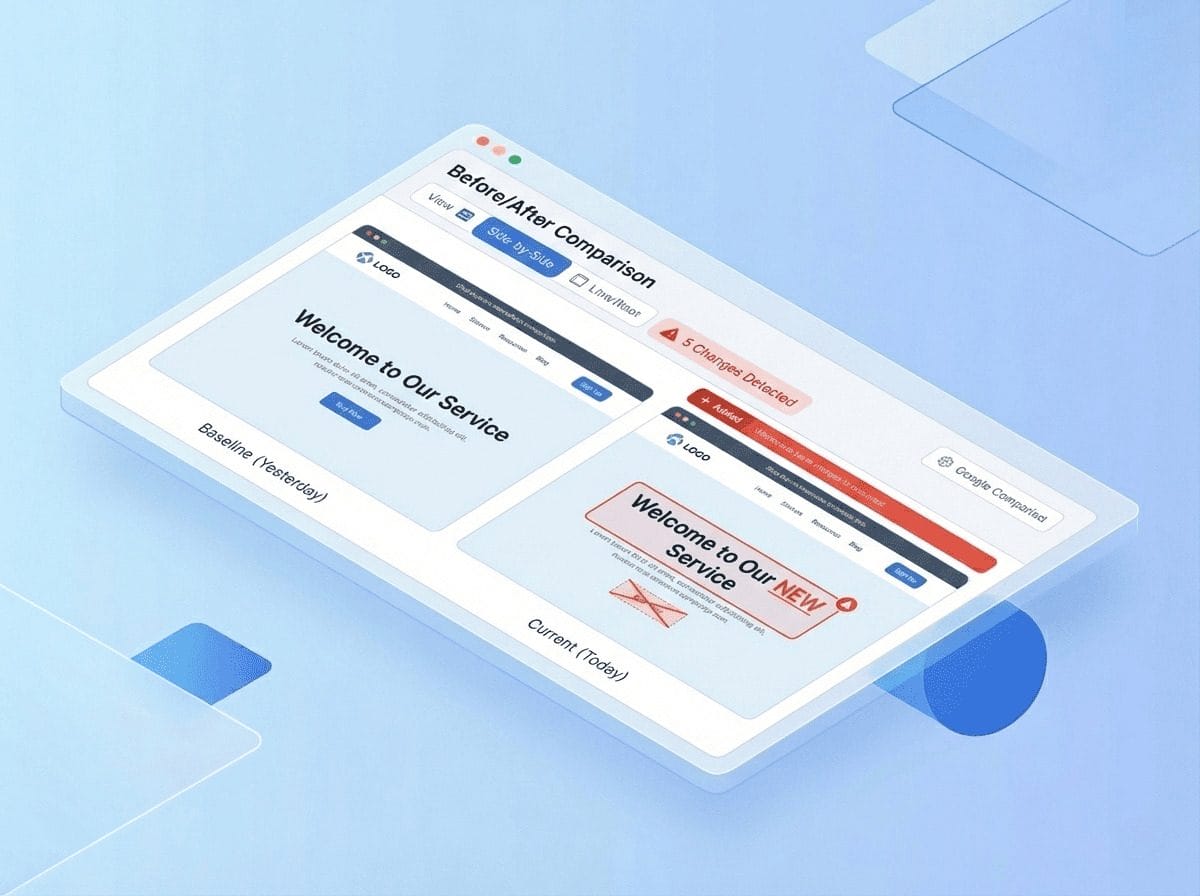
When we take a screenshot, we also capture the position of every DOM element. If a new element appears at the top (like a promo banner), everything below shifts down. We detect this shift pattern and automatically align the images for comparison.

DOM mapping: Captures position of headers, paragraphs, images, buttons

Shift patterns: Detects when content moved down the page

Auto alignment: – Compensates for shifts before comparing
Smart Diffing and Template Matching

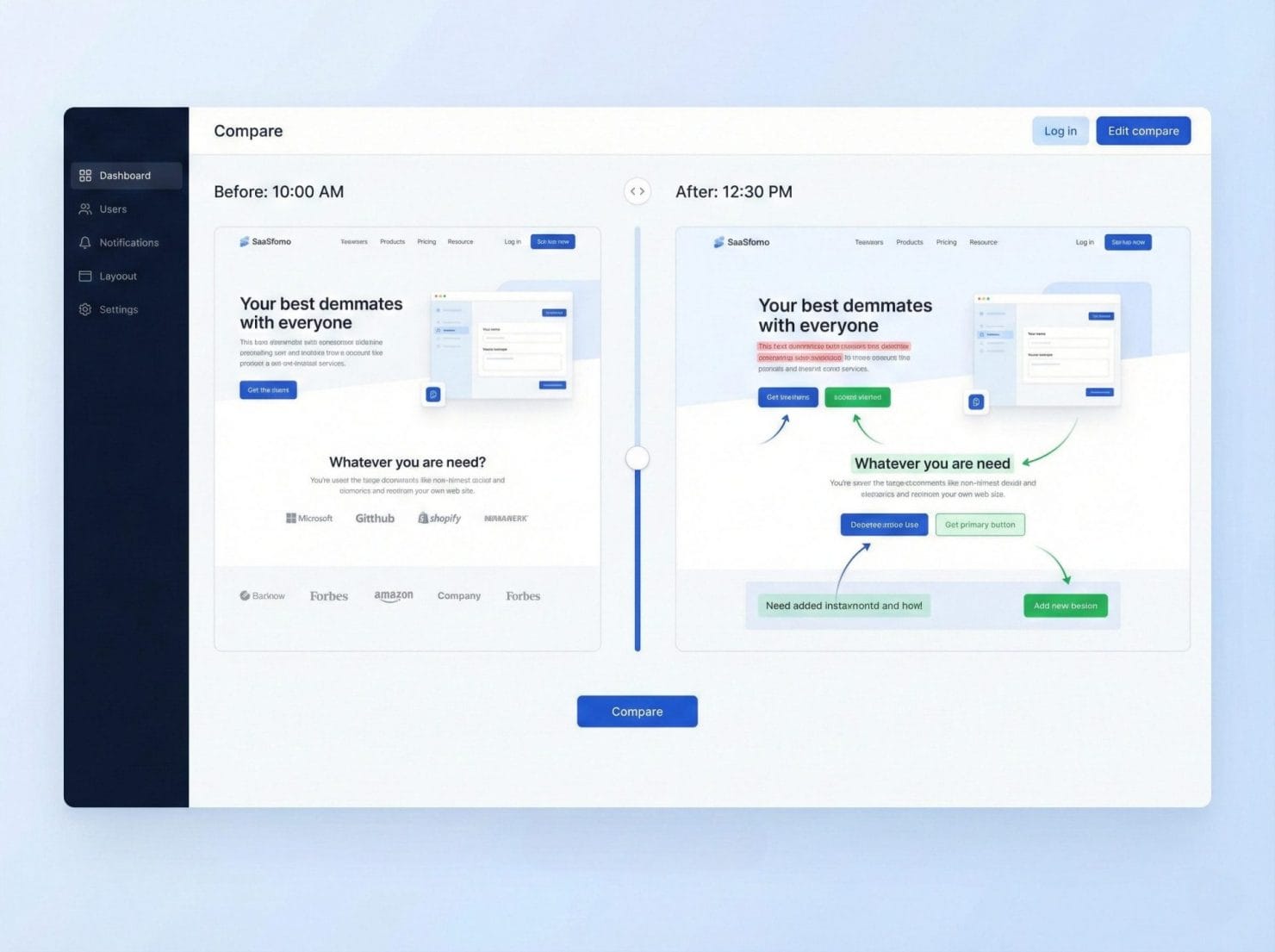
For remaining differences, we use template matching and SSIM (Structural Similarity Index) to determine if regions are actually different or just rendered slightly differently. Anti-aliasing artifacts? Font smoothing variations? Filtered out.

Template matching: Searches for moved content elsewhere on page

SSIM analysis: Measures structural similarity, not pixel identity

Noise removal: Filters rendering artifacts and minor variations
Saas Comparison Dashboard Interface

Configurable Threshold

Set your sensitivity level. Even 0.1% can catch significant changes, so use with care. Lower thresholds for pixel-perfect monitoring, higher thresholds to filter minor variations. Different thresholds for different sites based on what matters to you.

Per-URL thresholds: Homepage at 0%, blog archive at 0.1%

Per-website settings: Critical pages get stricter thresholds

You decide: What matters for your sites is your call

Isometric 3D illustration showing faceless blue figures adjusting sensitivity sliders on floating UI cards with percentage controls

Interactive Comparison View

When changes are detected, you get slider comparison (drag to reveal before/after), side-by-side view, highlighted overlay with changes marked in your chosen color, and a diff bar showing where changes occurred. See exactly what changed without playing spot-the-difference.

Slider comparison: Drag to reveal before and after

Highlighted overlay: Changes marked in your chosen color

Diff bar: Vertical indicator showing change locations

Isometric SaaS illustration showing slider comparison interface with before and after views and change detection overlay

See Intelligent Comparison in Action

Connect a real site and see how few false positives you get.

Frequently Asked Questions

What counts as a ‘change’?

Any pixel difference that survives our filtering pipeline: shift detection, template matching, SSIM analysis, and noise removal. Only meaningful visual differences count.

Can I adjust the sensitivity?

Yes, per URL or per website. Set different thresholds for different pages based on how critical they are.

Do unused checks roll over?

No. Checks reset each billing cycle. But you can always downgrade if you’re consistently under your limit.

Is there really no per-site fee?

Really. Monitor 1 site or 1,000 — same price. You only pay for checks used, not sites added.