Black Friday Deal: 20% off with voucher code: PIXELGUARD20  |  Ends in:

WordPress Updated at 3am. Did It Break Anything?
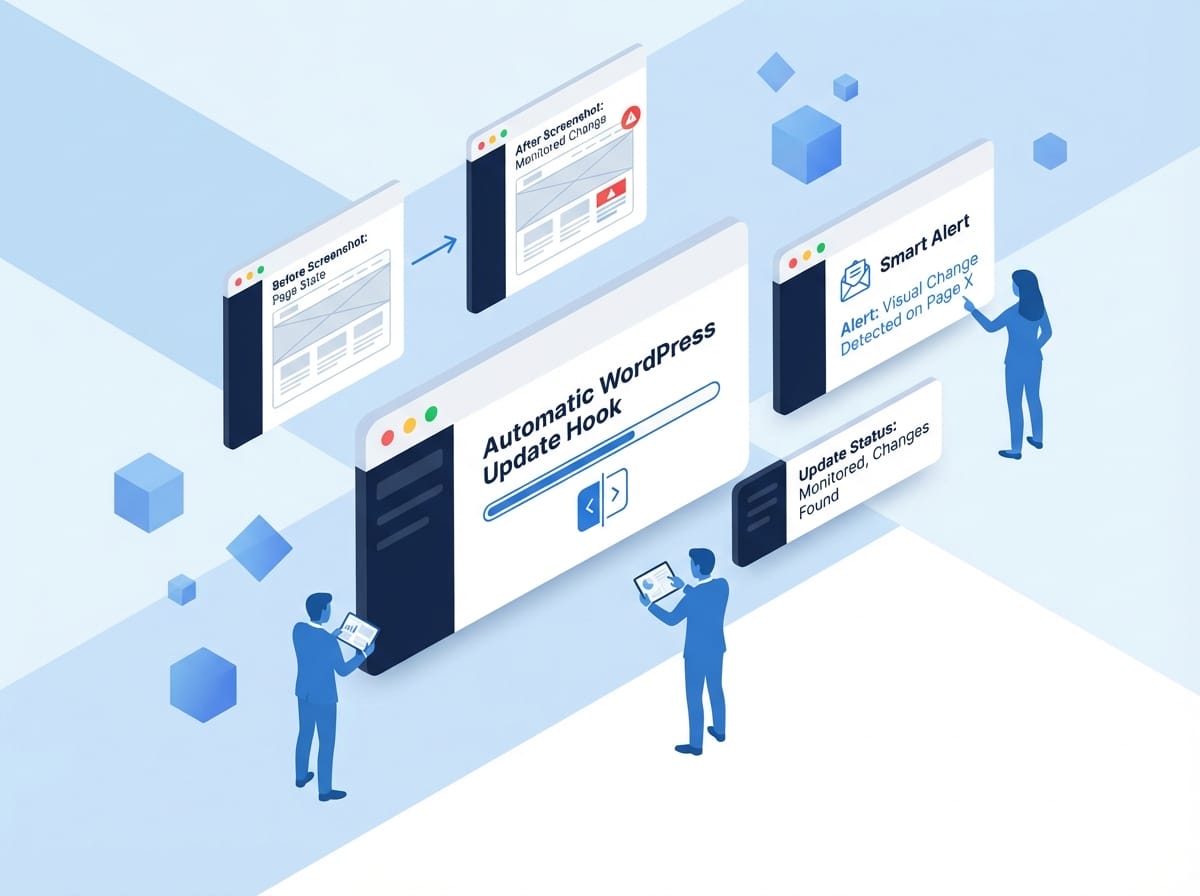
Auto-updates are a blessing and a curse. They keep sites secure, but they can also break layouts, crash plugins, and ruin your Monday morning. We watch every update so you can sleep through them.
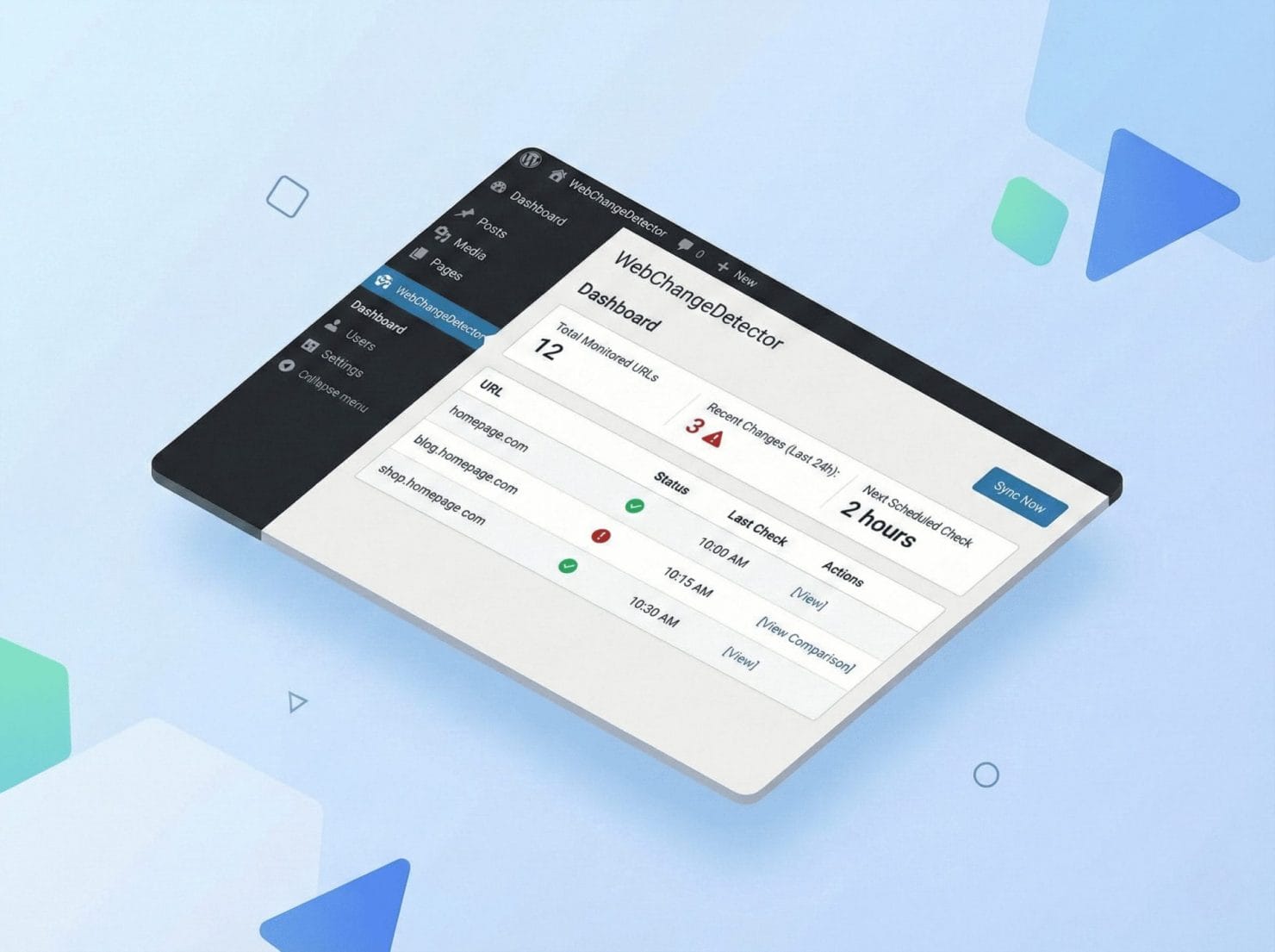
Isometric illustration showing automated before and after screenshot comparison during WordPress updates with floating geometric shapes

The 3am Security Patch Nightmare

WordPress auto-updates are enabled by default now. That’s good for security. But:

Plugin conflicts: New version doesn’t play nice with something else

Theme breakage: CSS changes cascade unexpectedly

Function deprecation: Something worked yesterday, doesn’t today
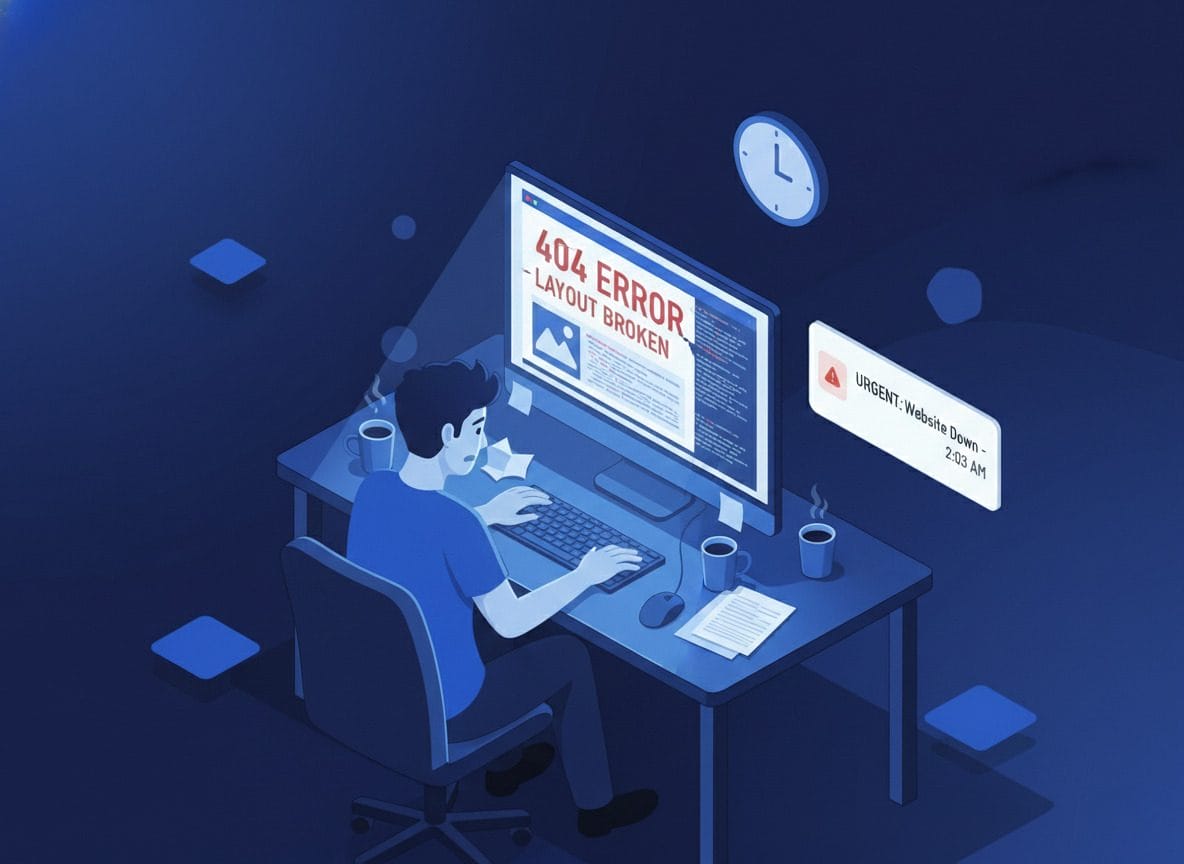
The worst part? You usually discover these at the worst time: Client emails Monday morning, Sales dip because checkout is broken, Boss asks ‘did you test the update?’ No. Nobody tested the update. It happened at 3am.
Website Down 404 Error Late Night

Automatic Before/After on Every Update

Our WordPress plugin hooks directly into the update process:

Update detected: WordPress, plugin, or theme about to update

Before & After screenshots: We capture all monitored pages twice

Intelligent comparison: Our engine analyzes the differences and alerts you only if something actually changed
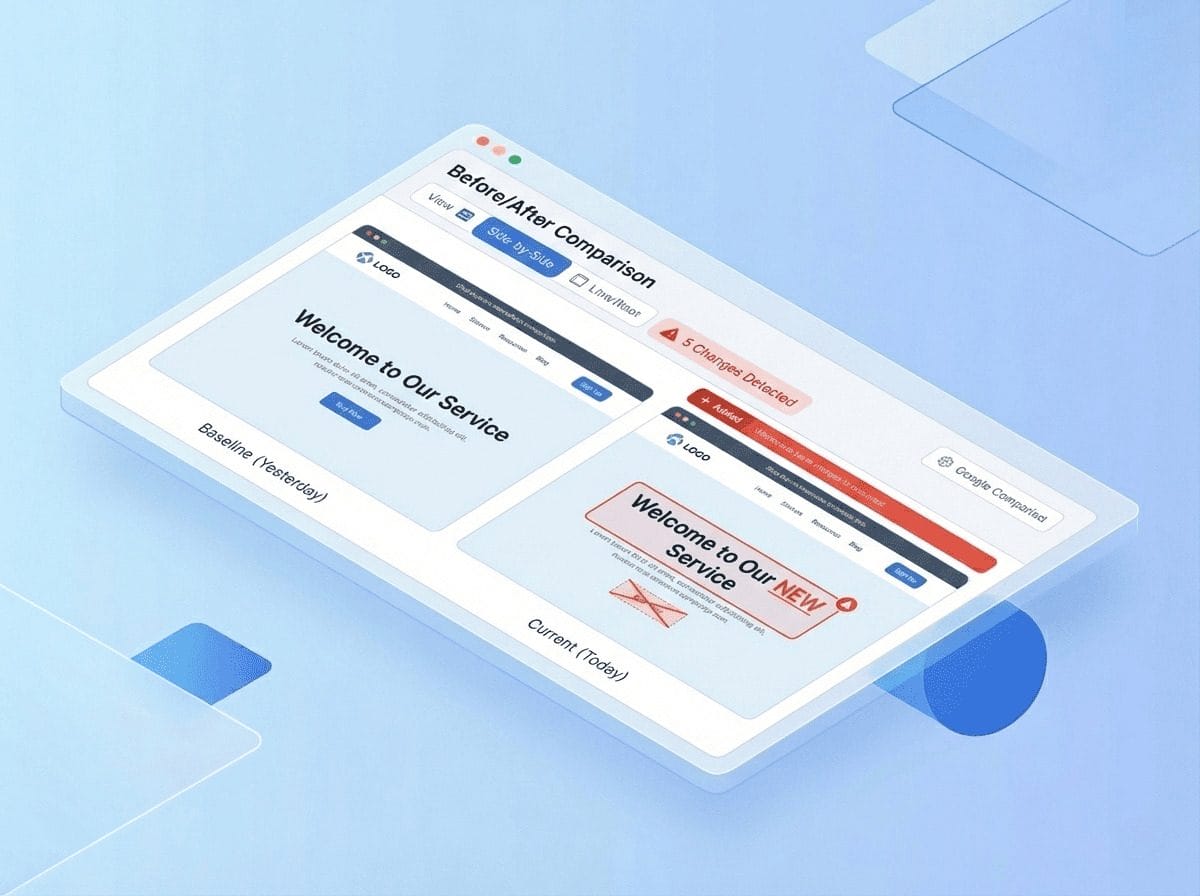
You wake up to either: Nothing (update went fine, enjoy your coffee) OR Alert email “Hey, this changed. Take a look”. Either way, you know. No surprises.
Before After Comparison 5 Changes

How Auto-Update Monitoring Works

Simple setup, powerful protection for your WordPress sites:

Install & Enable — One toggle in settings: Enable auto-update monitoring. That’s it.

WordPress Updates — Whether core, plugin, theme, or manual update — we detect it and start the process

Automatic Screenshots & Comparison — Before screenshots → Update completes → After screenshots → Intelligent comparison → Alert or all clear
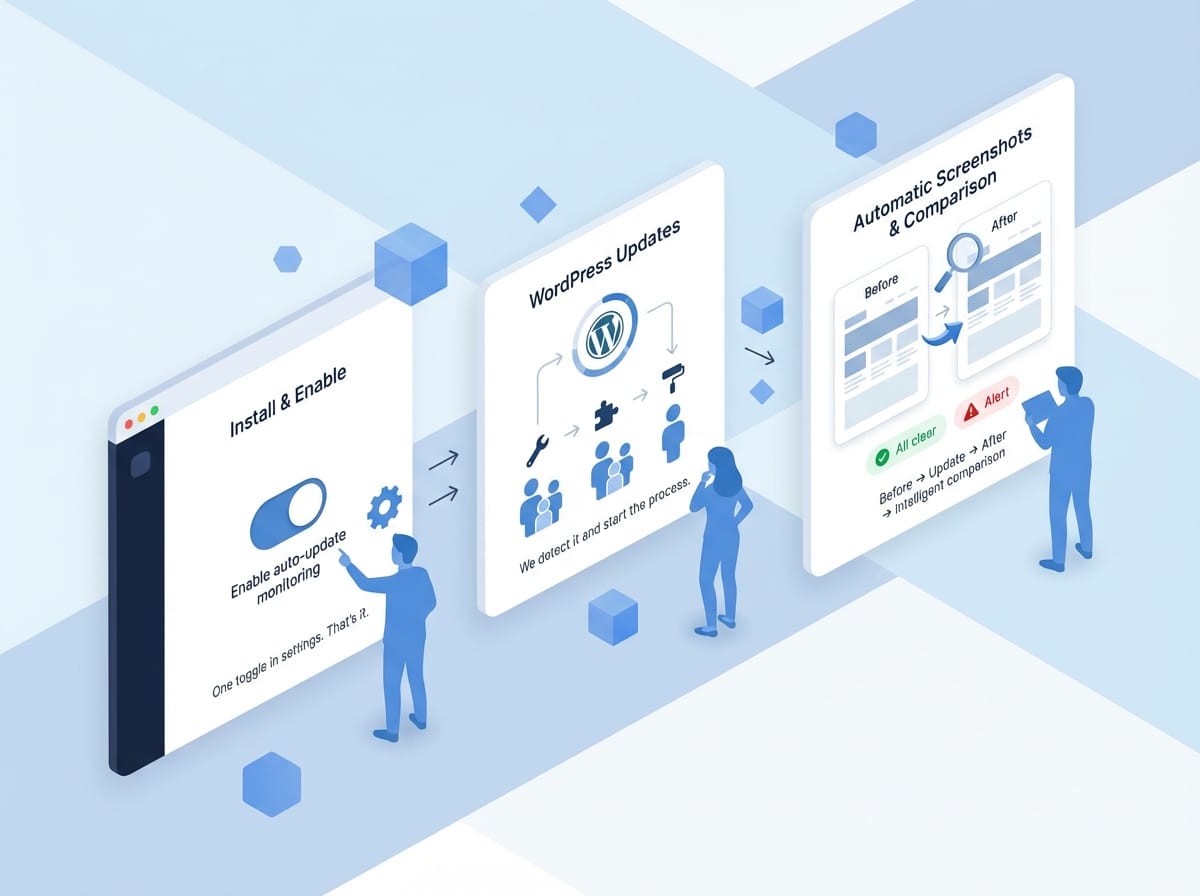
Illustration how wordpress auto update monitoring works

Plugin Conflicts

Plugin A updates, breaks compatibility with Plugin B. Missing elements, JavaScript errors, broken layouts. Visual comparison shows missing sections or broken UI.

CSS Regressions

Theme update changes CSS selectors. Fonts wrong, spacing off, colors changed. Visual comparison highlights styling differences.

JavaScript Errors

Updated plugin has bug in new version. Interactive elements stop working. Console log capture shows errors.

PHP Errors

Plugin requires newer PHP feature. White screen, partial rendering, error messages detected immediately.

Database Issues

Plugin migration script fails. Missing content, broken queries. Visual comparison shows missing sections.
WooCommerce pushed a point release. Auto-update installed it overnight. Update changed checkout form styling. Payment button shifted off-screen on mobile.

8 hours of broken mobile checkout.

With WebChangeDetector: Alert sent 2 minutes after update. Comparison showed mobile checkout issue. Quick fix deployed at 7am.

Minimal impact, no customer complaints.

Isometric illustration of automated website monitoring detecting update issues with floating UI cards and alert notifications
Caught before customers noticed

Which Updates to Install

Simply select the core/themes/plugins you want to include in the auto-updates with enabling the native WP auto updates.

Which Pages to Check

Prioritize critical pages: Homepage, Key landing pages, Checkout/Cart for e-commerce, Contact forms. Pro tip: Focus on critical pages.

Threshold Settings

Set your sensitivity: 1-2% catch everything (critical sites), 5% balanced (most sites), 10%+ only major issues (low-priority sites).

The Morning Routine

Compare to the old way: Log into 20 sites, Click through each one, Try to remember what they looked like before, Give up and hope nothing broke.

7:00 AM — Check email No alerts? Great. Move on. Alert? Click through, review comparison.

7:05 AM — Review any alerts False positive? Mark as OK. Real issue? Mark as To Fix, deploy fix or rollback.

7:15 AM — Done Total time: 15 minutes. All sites checked. All issues caught. Coffee still hot.
Frequently Asked Questions

Does this slow down updates?

Barely. We wait for the screenshots to finish and continue with the auto-updates when they are done.

What if an update breaks the site completely?

We still capture what we can. If the page returns an error, you’ll see that in the comparison (blank page vs. working page = obvious problem).

Can I exclude certain plugins from monitoring?

You can exclude pages, but updates are detected at the WordPress level. The monitoring covers whatever pages you’ve selected.

What about staging sites?

Great idea. Run auto-update monitoring on staging first. If it breaks there, don’t update production.

Never Wonder “Did That Update Break Something”?

Set up auto-update monitoring in 5 minutes. The next time WordPress updates at 3am, you’ll know exactly what happened.