You ran a on-demand check, monitoring detected a change overnight, or an auto-update triggered a comparison. Now what? All three detection methods produce the same output: change detections. This guide covers everything you need to know about reviewing them: navigating the dashboard, reading AI analysis, setting statuses, and training the system to filter noise over time.
The Change Detections Dashboard
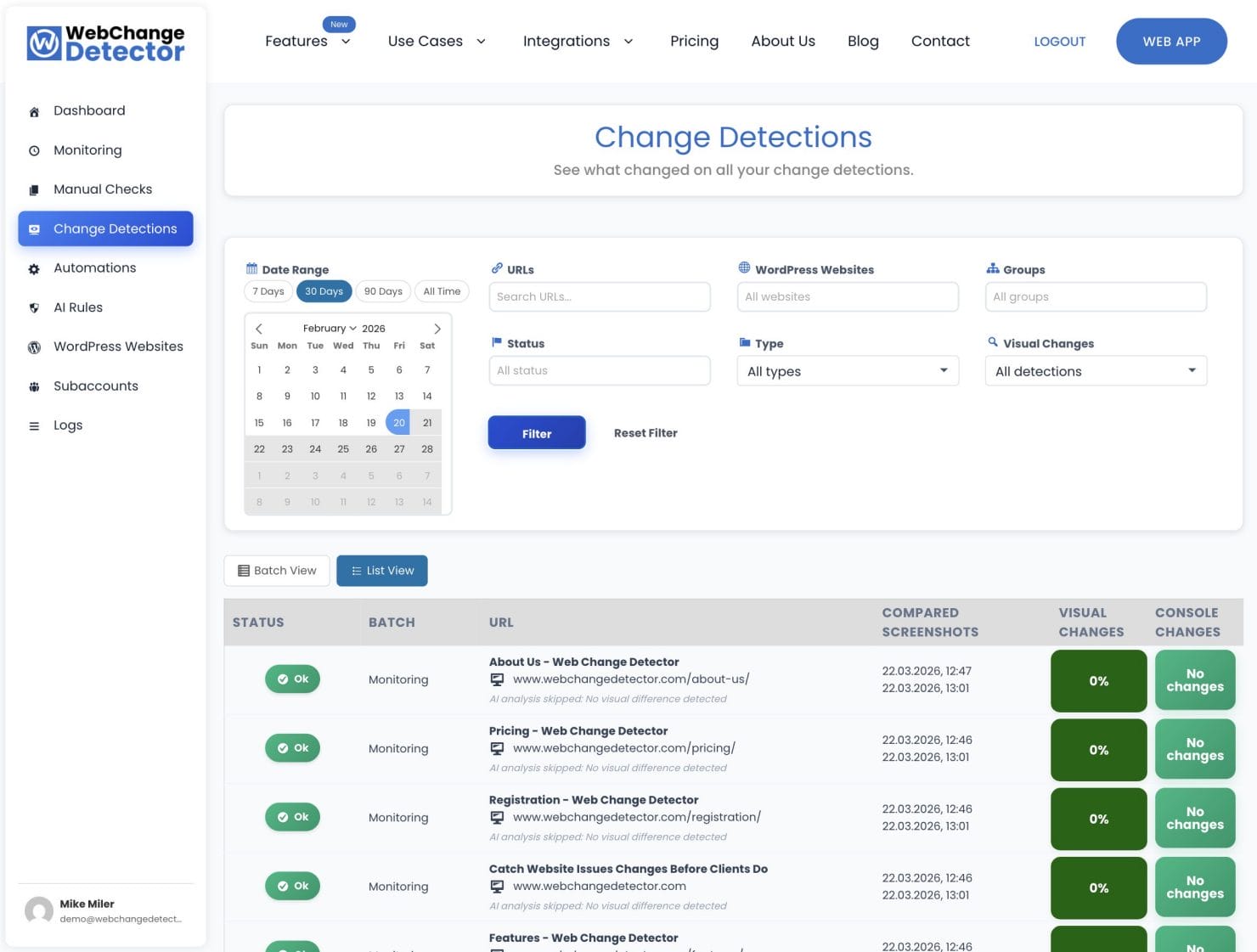
All detection methods feed into one place: the Change Detections tab. Whether a comparison came from a on-demand check, scheduled monitoring, or an auto-update cycle, you review it here.
Two Views: Batch and Flat
Batch view groups comparisons by detection run. Each batch shows when it ran, what triggered it (monitoring, on-demand check, or auto-update), and how many pages were checked. Expand a batch to see all its comparisons. Best for reviewing a single update session as a complete unit.
Flat view shows all comparisons as a chronological list regardless of which batch they came from. Best for finding a specific comparison or for reviewing changes across all sites in a date range without caring about grouping.
Filtering Your View
The dashboard has a filter panel at the top:
- Date range: Narrow to the last 24 hours for overnight changes, or expand to 30 days for a full audit.
- Group: Filter by a specific site’s monitoring or on-demand detection group.
- URL search: Type part of a URL to find a specific page.
- Status: Filter by New, OK, To Fix, or False Positive to triage your review queue.
- Only with changes: Toggle to hide pages where nothing changed. Useful for large sites where you want to focus on problems.
What Each Row Shows
Each comparison row in the table displays:
- Status badge: AI classification (Alert in red, Not Sure in yellow, All Good in green)
- URL and device type: Page title and URL with a desktop or mobile indicator
- Change percentage: How much of the page changed (e.g. 2.3%), with a threshold indicator if configured
- Console changes count: Number of added or removed browser console entries (plan-dependent)
- AI summary: A short auto-generated description of what changed
The Comparison Popup
Click any row to open the full comparison popup. This is where you do the actual review work.
Before/After Image Slider
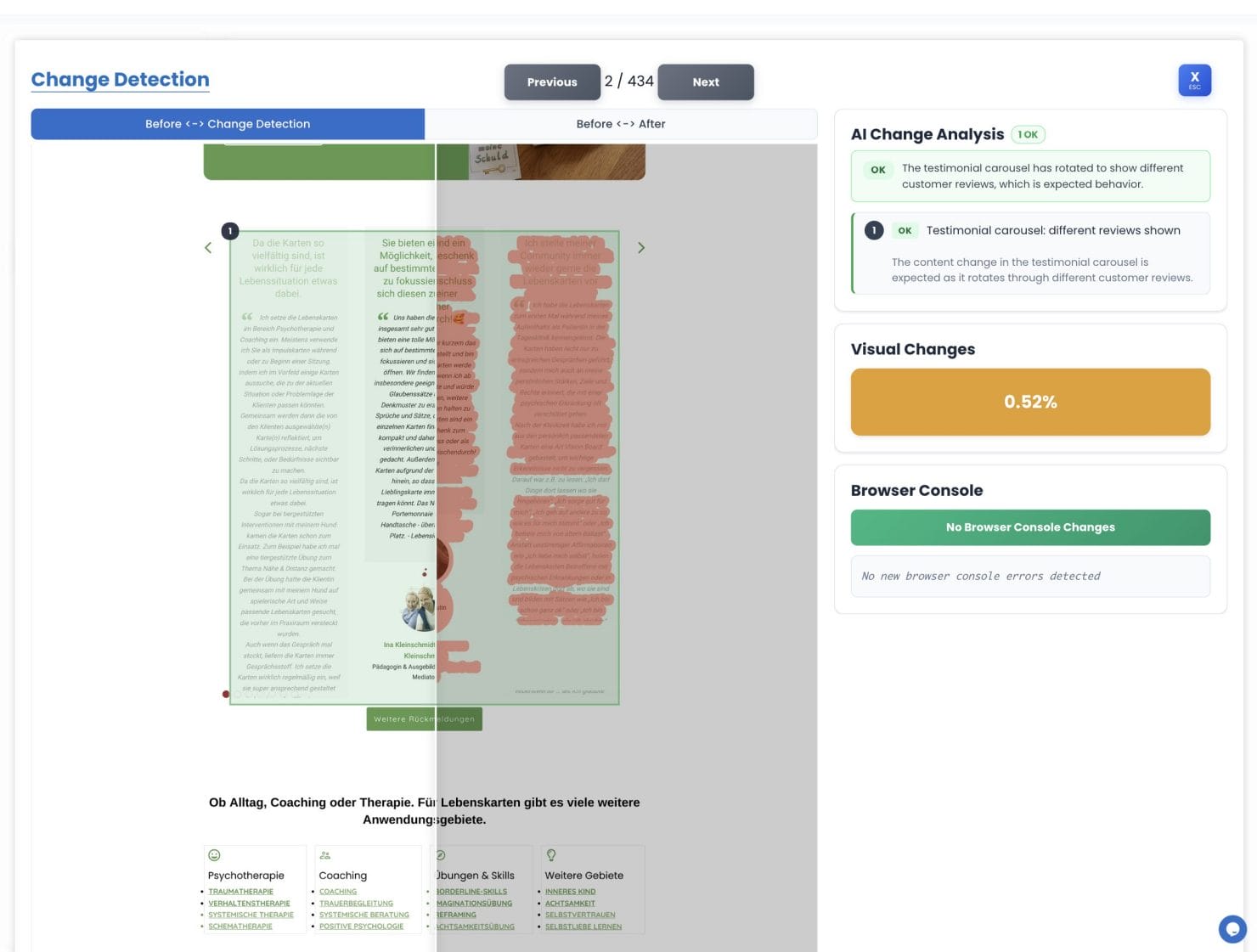
The left side of the popup shows a TwentyTwenty image slider. Drag the divider left and right to compare the before and after screenshots side by side. A toggle at the top switches between two views:
- Change Detection view: The diff image, where changed pixels are highlighted in a color overlay. This makes it immediately obvious where on the page something shifted.
- After view: The clean post-update screenshot with no overlay.
The Sidebar
The right sidebar contains three areas:
- AI analysis: Region cards showing what changed and why (covered in detail below)
- Visual change percentage: The overall pixel diff for this comparison
- Browser console changes: Added or removed console entries (plan-dependent)
AI Change Analysis
Every comparison is automatically analyzed by AI. It scans the changed regions in the image, figures out what actually changed, and gives you a verdict so you don’t have to squint at pixel diffs yourself.
The Three Categories
The AI breaks down changed regions into three categories:
- All Good (green): Dynamic or expected elements. Rotating banners, ad slots, cookie consent variations, personalized greeting text, live product availability indicators. No alert is sent.
- Alert (red): A real content change detected. Text, layout, navigation, or imagery that shouldn’t have changed. Alert is sent.
- Not Sure (yellow): Ambiguous change that needs your judgement. Treated as an alert so you can review it manually.
Overall Verdict Badge
At the top of the sidebar, you’ll see an overall AI verdict for the whole comparison: a single badge that aggregates all region results. Alert takes priority over Not Sure, which takes priority over All Good. This gives you a quick signal before you dig into the details.
Region Cards
Each detected change region gets its own card in the sidebar with a category badge and a plain-English description of what changed. Hover over a region card to highlight its location on the image. Click a card to jump directly to that region in the diff view. Useful when a page has multiple changed areas and you want to work through them one by one.
AI Batch Summaries
After a complete monitoring or check run, the AI generates a 2 to 3 sentence summary of all the changes detected in that batch. This summary appears in the alert email and on the batch detail page, giving you a quick plain-English overview before you dive into individual comparisons.
Browser Console Changes
On supported plans, the sidebar also shows browser console changes: JavaScript errors or warnings added or removed between the two screenshots.
This matters because some updates break things without any visible change. A plugin update that silently introduces a JS error won’t show up in the pixel diff, but it will show up here. A broken checkout flow, a failed analytics script, a CSP violation: these are invisible to screenshots but visible in the console.
Console errors trigger alerts independently of visual changes. A page can look visually identical but still get flagged if new errors appeared.
Setting a Status
After reviewing each comparison, mark it with a status:
- OK: The change is expected and acceptable. Use this for changes you’ve reviewed and confirmed are fine.
- To Fix: Something needs to be corrected. Use this to flag regressions that require action before you’re done.
- False Positive: Not a real issue. Use this for dynamic elements (timestamps, rotating content) that should not have been flagged. If the same element keeps generating false positives, consider creating an AI feedback rule (see below).
Setting statuses helps you track your review progress, especially on large batches. Filter by status to quickly find unreviewed comparisons or items that still need fixing.
AI Feedback Rules: Reducing Noise Over Time
Your site has elements that always change: a rotating hero banner, a live pricing widget, a “last updated” timestamp. You don’t want those flagged as alerts on every single run. AI Feedback Rules let you teach the system to ignore these patterns automatically.
Creating a Feedback Rule
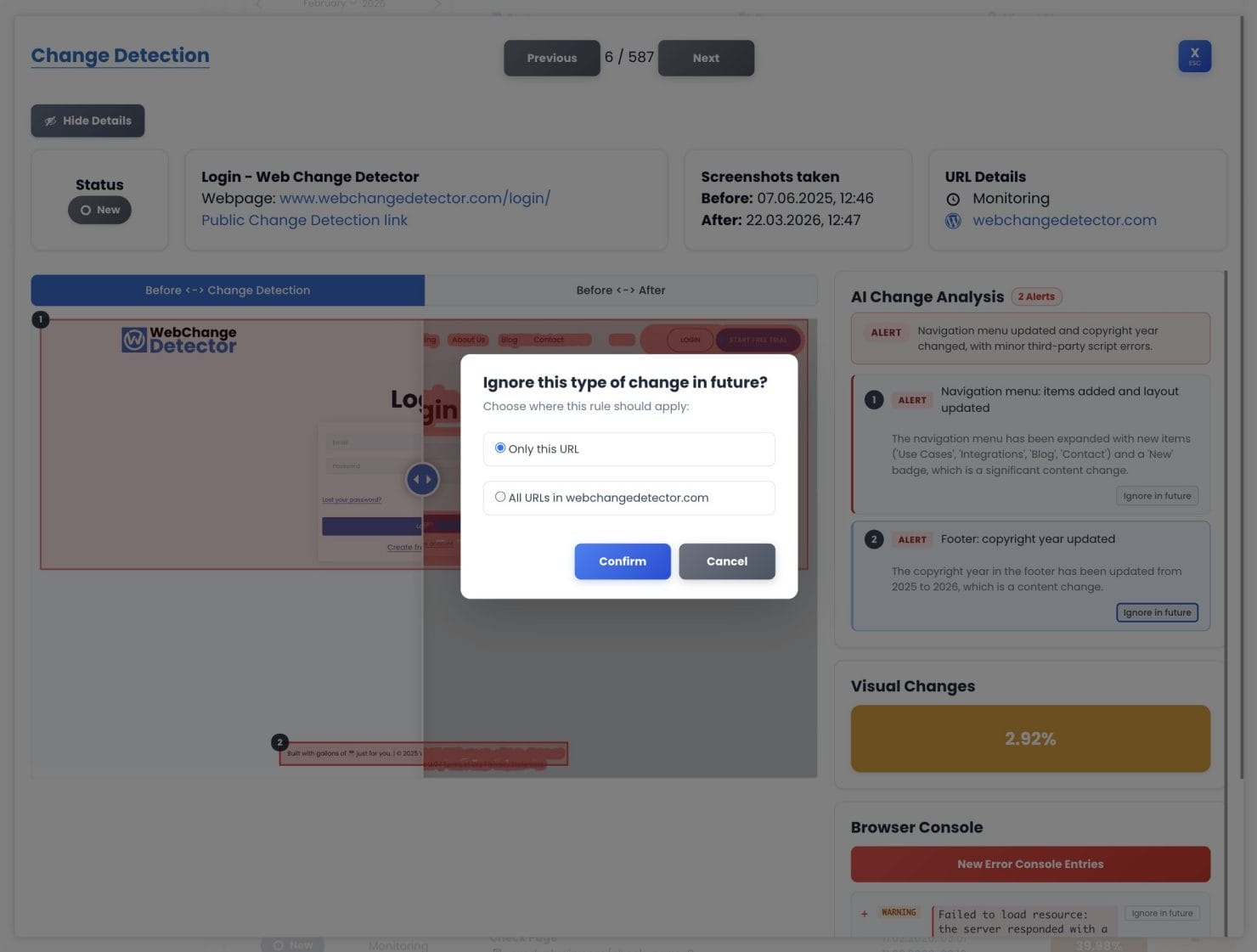
From any region card in the comparison popup, click Ignore in future. You’ll be asked for a scope:
- Only this URL: Ignore this pattern on this specific page only.
- All URLs in [group name]: Ignore it across the entire group. Use this for sitewide elements like chat widgets or cookie banners.
The same option is available for browser console entries.
Managing Your Rules
All active feedback rules are managed from the AI Rules tab. From there you can see each rule’s description, scope, and match count. Toggle rules off temporarily, update their scope, or delete rules that are no longer needed.
How Signal Quality Improves Over Time
The more runs you do, the cleaner the signal gets. After a few rounds of creating rules, you’ll spend a lot less time dismissing false positives and a lot more time catching real problems. A site that generates 20 false positive alerts per week on initial monitoring settles down to 1 or 2 real alerts per week once the rules are dialed in.
Sharing Comparisons
Each comparison has a share link. Click the share button in the comparison popup to get a URL you can send to a client or colleague. They can view the before/after screenshots and the diff overlay without needing a WebChange Detector account. Useful when a client asks “what changed?” and you want to show them directly. Or you want to share the changes with your webdesigner to fix things.
Review Best Practices
- Start with the AI verdict. The overall badge tells you whether a comparison needs attention. All Good means you can likely skip it. Alert or Not Sure means look closer.
- Use the “only with changes” filter. On large sites, this cuts out all the noise and shows you only the pages where something actually happened.
- Build up AI feedback rules steadily. After each review session, create rules for recurring false positives. Within a few cycles, your alert quality improves dramatically.
- Check console changes even when visuals look fine. JavaScript errors can break functionality without any visible change. The console tab catches these.
- Set a status on every comparison. This keeps your dashboard clean and makes it easy to find unreviewed items later.