This guide walks you through every step and every option in the Manual Checks workflow: from selecting which pages to check, to reading the AI-powered analysis of your results.
What Are Manual Checks?
Manual Checks are on-demand visual comparisons. You trigger them when you’re about to make a change. That’s the key difference from Automated Monitoring, which runs on a schedule and watches for unexpected changes without you doing anything.
The concept is simple: capture the visual state of your pages before an update, make the update, then capture the state after. The tool compares both sets of screenshots pixel by pixel and tells you exactly what changed.
Use Manual Checks whenever you:
- Update WordPress core, plugins, or themes
- Deploy custom code changes
- Migrate or restructure content
- Change CSS or layout settings
- Run any update where visual regressions are a real risk
Both desktop and mobile screenshots are captured in a single run, so you don’t have to check them separately.
One important thing to know: Manual Checks do not send email notifications when changes are found. You review results directly in the dashboard. If you want alerts sent to your inbox automatically, that’s what Automated Monitoring is for.
The 4-Step Workflow at a Glance
The Manual Checks feature guides you through four steps:
- Settings: Select which pages and devices to check
- Pre-Update Screenshots: Capture the “before” state
- Make Your Updates: Do the actual work on your site
- Post-Update Screenshots + Results: Capture “after” and review comparisons
Step 1: Selecting Your Pages (Settings)
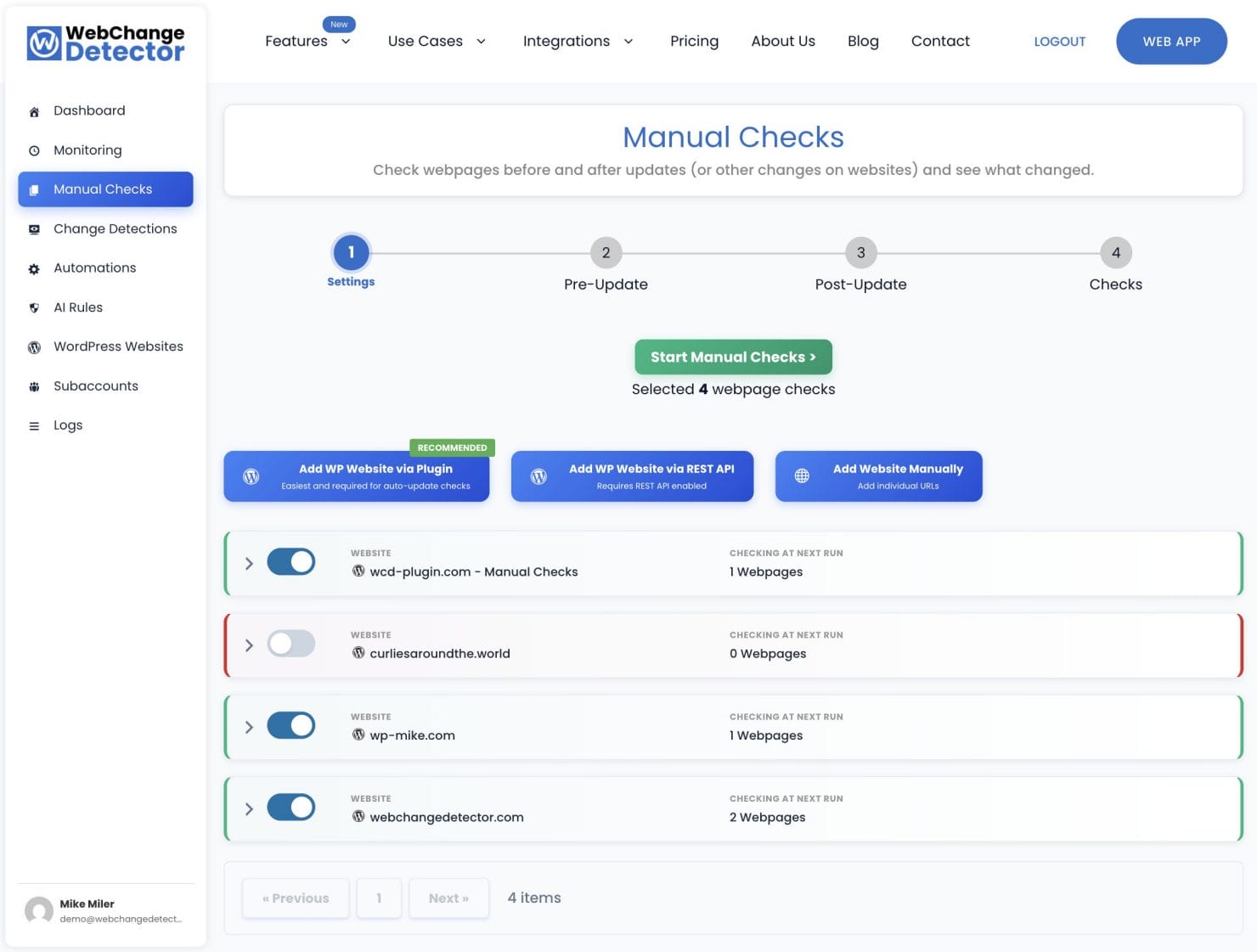
The first step is deciding which pages to include. Navigate to the Manual Checks tab in your WebChangeDetector dashboard and you’ll see a list of all URLs synced from your WordPress site.
Choosing Pages and Devices
Each URL has two checkboxes: Desktop and Mobile. You can select them independently. If a layout change only affects mobile, check mobile only and save credits.
Use the Select All Desktop and Select All Mobile checkboxes at the top of each group to quickly select everything in that group. A search bar and post-type filter (pages, posts, products, custom post types) help you find specific URLs across large sites.
Understanding Groups
URLs are organized into groups. Each group carries its own settings: screenshot delay, CSS/JS injection, basic authentication credentials, and proxy configuration. All URLs in a group inherit these settings, so you configure once and it applies everywhere.
Manual Checks use a dedicated manual detection group whose settings are synced from your monitoring group configuration.
Credit Usage Counter
Below the Start button, a counter shows the total number of checks that will be taken based on your current selection. Each URL/device combination uses 1 check.
Step 2: Taking Pre-Update Screenshots
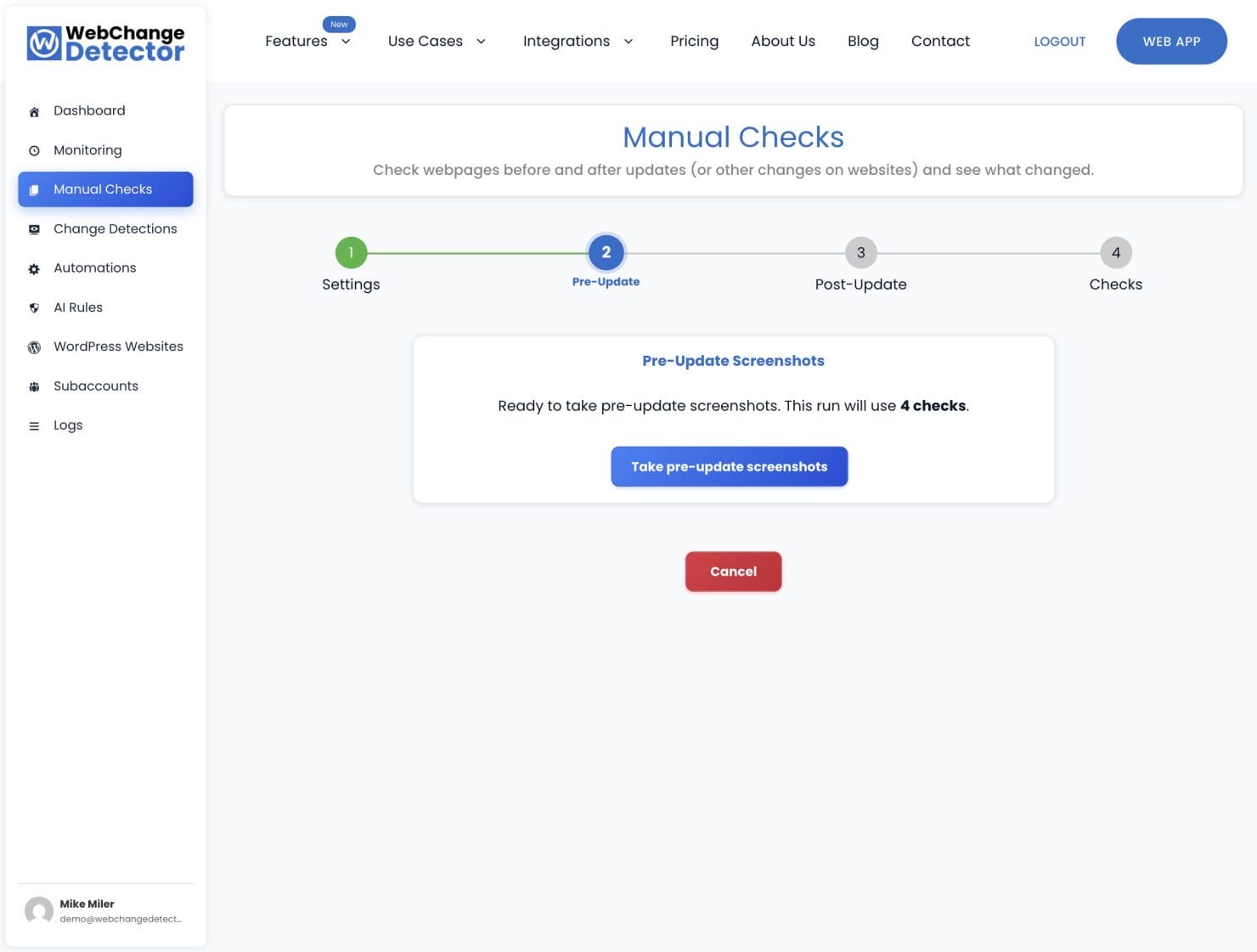
Once you’ve selected your URLs, click Take Pre-Update Screenshots. WebChangeDetector validates your credit balance, queues all screenshots, and starts processing them in the background.
The Processing Screen
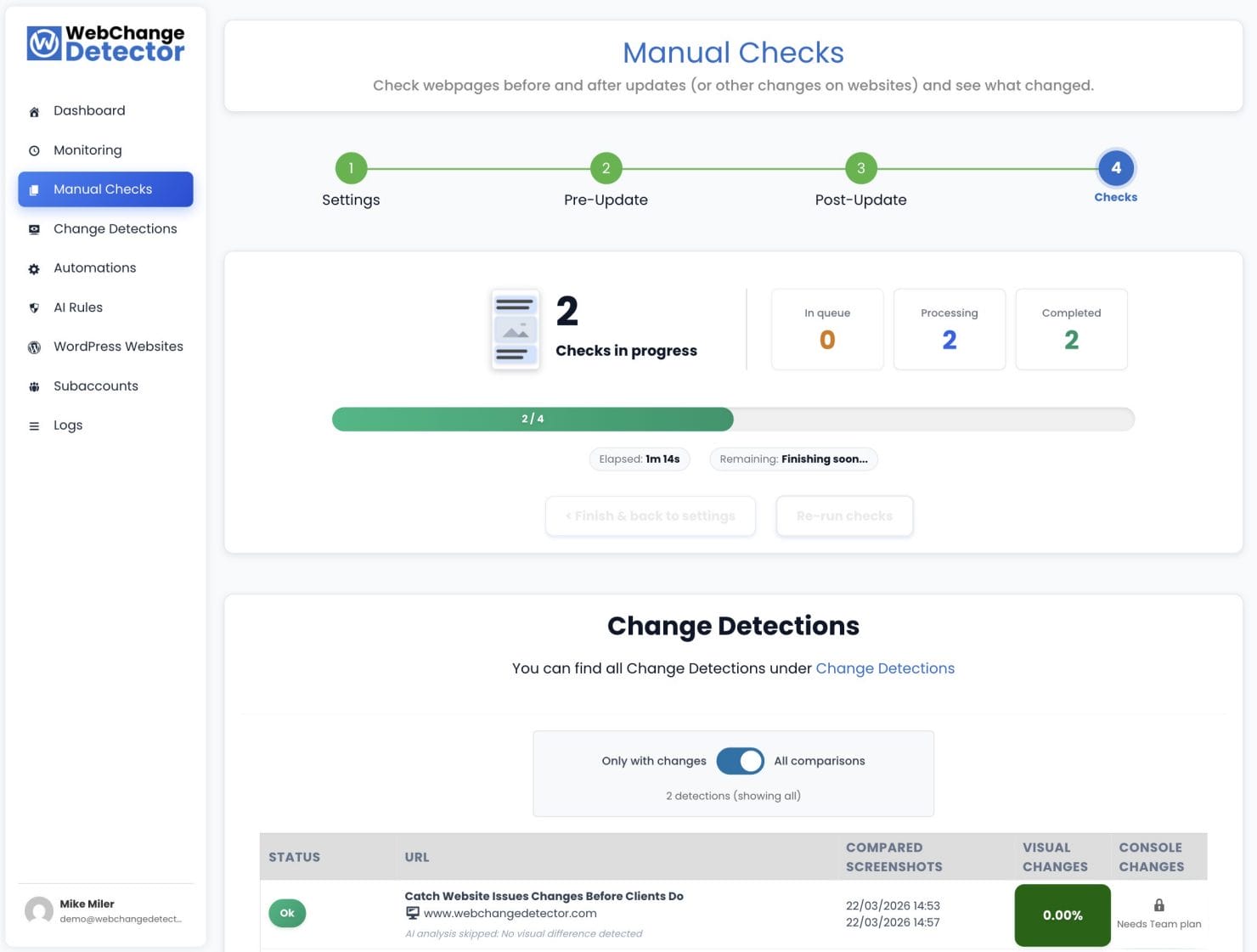
The screen updates in real time with four status tiles:
- In Queue: Screenshots waiting to be processed
- Processing: Currently being taken
- Completed: Successfully captured
- Failed: Could not be captured
A progress bar shows the fraction completed (for example: 12/20), along with elapsed time and an estimated time remaining.
Previewing Completed Screenshots
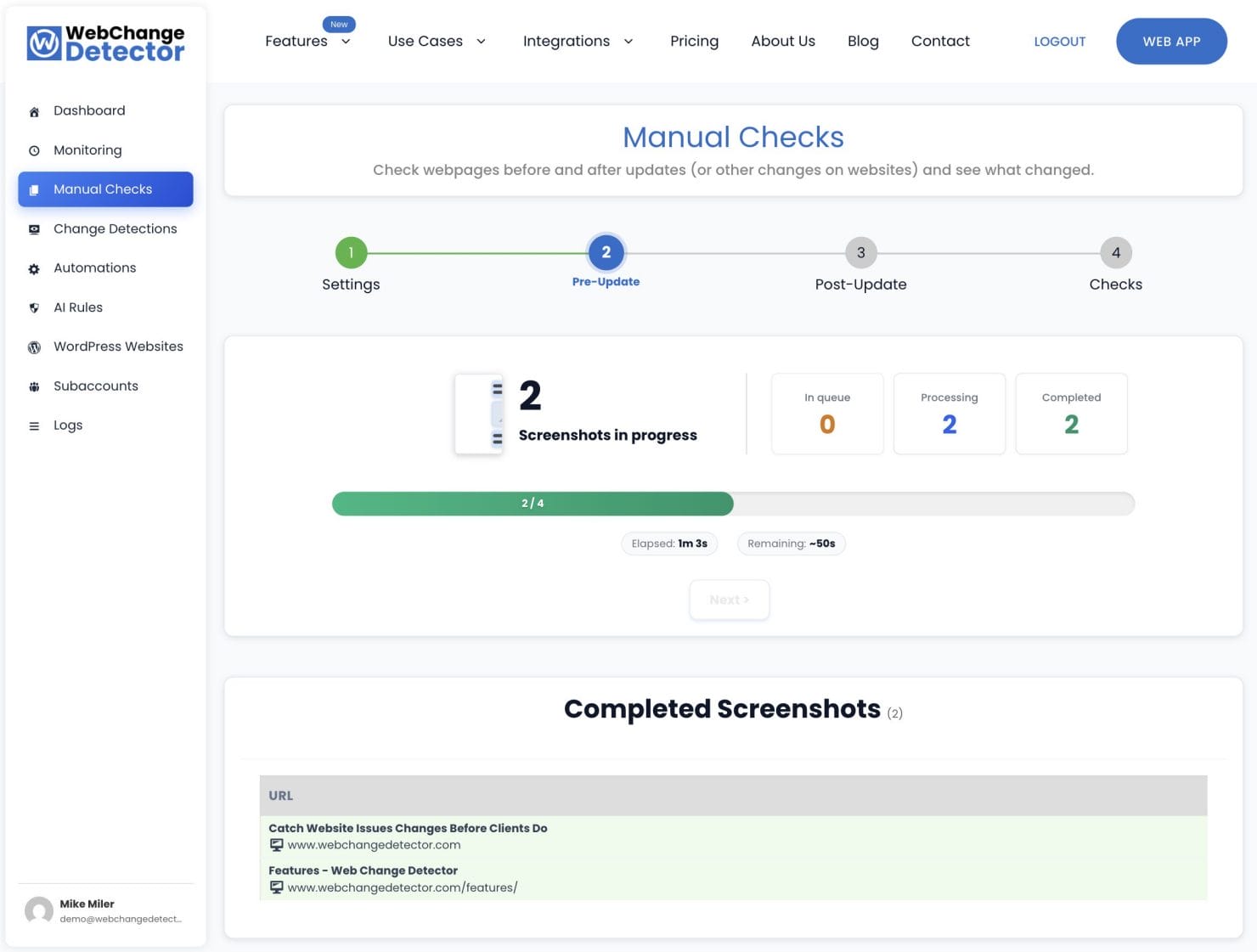
As screenshots complete, they appear in a list below the progress bar. Click any entry to preview it in a popup modal. It’s worth checking a few before moving on. This confirms the tool captured what you expected and not a cookie banner or login redirect.
Handling Failed Screenshots
If any screenshots fail, a View Failed button appears. This opens a modal showing the URL, device type, and the error message. Common reasons: page load timeouts, HTTP errors, or pages that require authentication.
Fix the underlying issue before moving to the next step. For example, add basic auth credentials in your group settings if the site is password-protected. Running comparisons against missing screenshots produces inaccurate results.
After Pre-Screenshots Complete
When all screenshots are done, you can click the “next” button. You can safely close your browser at this point. The workflow state is saved. Come back when you’re ready to proceed.
Step 3: Make Your Updates
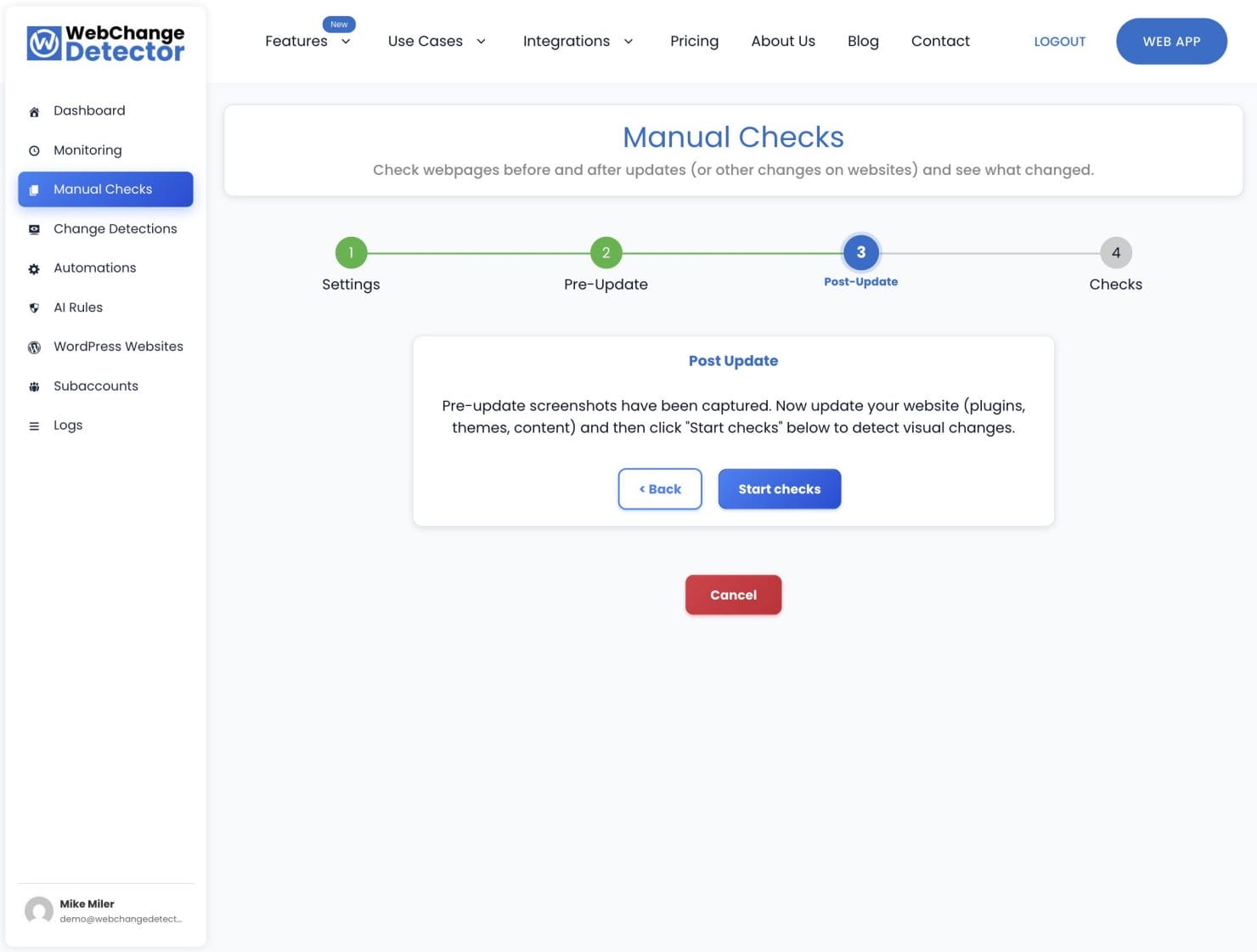
Now do the actual work on your site. Update WordPress core, install plugin updates, switch theme versions, deploy code changes. Whatever you planned. The comparison is only meaningful if something actually changed between pre and post.
Tip: Make a note of which plugins or themes you updated. When you review the change detections, this context helps you quickly decide whether a detected change is expected or a sign of a problem.
Step 4: Post-Update Screenshots and Results
Return to the Manual Checks tab and click Start Checks. This triggers the post-update screenshot run, which works identically to the pre-update process. Once the post screenshots are taken, comparisons are automatically created by pairing each post screenshot with its corresponding pre screenshot.
The comparison engine calculates the percentage of pixels that changed and generates a visual diff image highlighting the differences.
Reviewing the Results
Once your post-update screenshots are done, comparisons appear in the Change Detections dashboard. Each comparison shows the visual difference percentage, an AI-powered analysis that classifies each change region (real issue vs. expected dynamic content), and browser console changes.
Unlike Automated Monitoring, Manual Checks do not send email notifications. You come here, you review, you decide.
For the full walkthrough of the comparison popup, AI analysis categories, feedback rules, and review best practices, see our dedicated guide: How to Review Change Detections.
Re-Running Checks Against the Same Baseline
Found a problem in the results? Fix it on your site, then click Re-run checks. A new set of post-update screenshots is taken and compared against the same pre-update baseline.
You can repeat until everything shows OK. The pre-update baseline stays intact for as many post-update rounds as you need. Fix, recheck, fix, recheck until you’re confident.
Best Practices
- Take pre-screenshots before touching anything. It’s easy to forget. Add it to your update checklist and make it a habit.
- Always check mobile. Many layout regressions only appear on small screens. Don’t assume desktop looks good means mobile does too.
- Be selective about which pages to check. Routine plugin update? Check only affected pages. Major WordPress core update? Run a full-site check.
- Watch your credit balance. Each URL/device combination uses 1 check per run. Check your balance in your dashboard before running large batches.
Stop Guessing, Start Checking
Most WordPress update problems are found too late: by a client, by a visitor, or by you three days after the fact. Manual Checks give you a simple, repeatable process to catch visual regressions the moment they happen.
Take the before screenshots. Make your updates. Take the after screenshots. Let the AI tell you what changed and whether it matters. It takes a few minutes and saves a lot of “how long has this been broken?” conversations.
Log in to your WebChangeDetector dashboard and run your first Manual Check today.